Selecting the Image Settings
You can select settings for image sampling, data offset and slope, axis transformations, as well as crop an image during the import process. You can also choose to continue importing additional image files.
Image settings
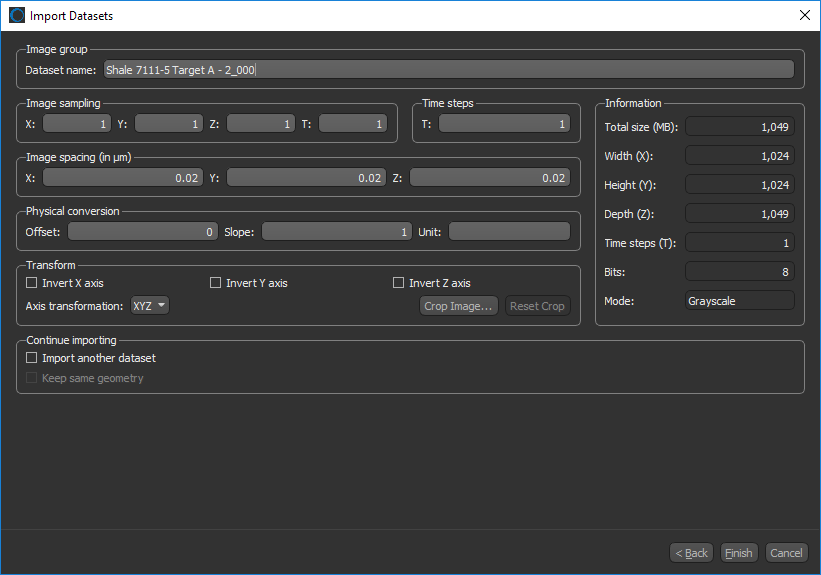
You can select the following in the image settings when you import dataset.
| Description | |
|---|---|
|
Image group |
You can enter a new name for the imported dataset here, if required. Implementing a naming convention is recommended if you typically work with multiple datasets at the same time. |
|
Image sampling |
By default, the image sampling values are always set to “1”. If you choose to resample your image, you can do so by modifying the X-Y-Z-T values. Increasing the X-Y-Z values will reduce the number of data units used to represent your visual. For example, if X = 5, then only one layer out of every five will be imported into the image. This can be useful if you need to manipulate very large datasets. The same principle applies to the time parameter (T). X, Y, Z… Determines the sampling rate for the X, Y, and Z axes. T… Determines the sampling rate for time volumes. |
|
Time steps |
By default, the number of time steps is set to “1”. If you are importing a dataset with a time dimension, you may need to manually enter the number of time steps in this edit box. If that information is present in the file being imported, the correct value will appear automatically in this field. You should note that the number of time steps must be a factor of the number of images in the dataset. |
|
Image spacing |
This number represents the absolute distance between slices of data. Some file formats, particularly DAT files, contain this information, in which case the fields will automatically show the correct values. For other file formats, you may have to set this value accordingly. |
|
Physical conversion |
Some file formats contain this information, in which case the fields will show the correct values. If not, you can select values for these fields as follows: Offset… Changes the default Offset value*. Offset is a basic transfer function that controls the brightness of an image. The nominal value is 0. Slope… Changes the default Slope value*. Slope is a basic transfer function that controls the contrast of an image. The nominal value is 1. Unit… Determines the type of units associated with the dataset, such as intensity or density. *See Dataset Properties for more information about these parameters. |
|
Transform |
Determines the sequence in which the dataset will be parsed. Data is typically structured inside a Cartesian coordinate system following the right-hand rule. Invert X axis… All data along the X axis will be read from maximum to minimum values. Invert Y axis… All data along the Y axis will be read from maximum to minimum values. Invert Z axis… All data along the Z axis will be read from maximum to minimum values. Axis transformation… Choose which axis alignment will be originally displayed — X-Y-Z, X-Z-Y, Y-X-Z, Y-Z-X, Z-X-Y, Z-Y-X. Crop Image… Click this button to open the Crop the Image dialog. In this dialog, you can select the portion of the image that you want to load (see Cropping Images). |
|
Continue importing |
Provides options for importing additional datasets. Import another dataset… Check this option if you plan to import an additional dataset. Keep same geometry… Check this option if want the dimensions of the next dataset that is imported to be consistent with the current dataset. If required, datasets will be clipped to the dimensions of the current dataset or to the cropping that was applied to the original dataset. |
|
Information |
Displays a summary of the file that will be imported, including its size, dimensions, bit depth, and mode. Total size… Indicates the total byte count, calculated as X*Y*Z*T. Width (X)… Indicates the number of pixels along the X-axis. Height (Y)… Indicates the number of pixels along the Y-axis. Depth (Z)… Indicates the number of pixels along the Z-axis. Time steps (T)… Indicates the number of time steps. Bits… Indicates the bit depth. Mode… Indicates the mode — either Grayscale or Color. |

 LEARNING LINKS

